- Mark as New
- Bookmark
- Subscribe
- Subscribe to RSS Feed
- Permalink
- Report Inappropriate Content
11-18-2025 03:23 PM in
Tablets1 Solution
Accepted Solutions

- Mark as New
- Subscribe
- Subscribe to RSS Feed
- Permalink
- Report Inappropriate Content
11-18-2025 04:13 PM in
Tablets
- Mark as New
- Subscribe
- Subscribe to RSS Feed
- Permalink
- Report Inappropriate Content
11-18-2025 04:13 PM in
Tablets
- Mark as New
- Subscribe
- Subscribe to RSS Feed
- Permalink
- Report Inappropriate Content
11-18-2025 06:54 PM in
Tablets
 cs_member10
- Mark as New
- Subscribe
- Subscribe to RSS Feed
- Permalink
11-19-2025 08:25 AM in
TabletsDear Samsung Member,
Greetings from Samsung Customer Support!
We regret to hear about your experience with our product. Please believe that this is not a usual occurrence.
Please perform the below-mentioned troubleshooting steps, these may help in resolving your concern.
● Kindly check connectivity & charger functionality: Please check whether the charger cable and adapter are fixed well. Remove the charging cable and reconnect with the mobile phone properly.
● Kindly check the charger functionality with a different device or try to charge the same device with a different charger.
● Kindly open Device Care from Settings > Battery > Please tap on 3dots (more option) at the top right-hand side > Please select settings> Enable fast cable charging.
● Kindly disable the battery protection mode( if enabled).
● Kindly follow the standard charging procedure. Charge the device in switch-off condition for a minimum of 10 minutes.
● Please check the back panel of your device's physical condition (Bulge, Swelling, or visible damage).
● If the physical condition is not good: Request you to turn off the device immediately and please do not try to charge or tamper with the battery also request you to visit the service center immediately.
● Update the software if available: https://www.samsung.com/in/support/mobile-devices/samsung-galaxy-smartphone-how-to-update-software/
● You can reset your device by following the steps.
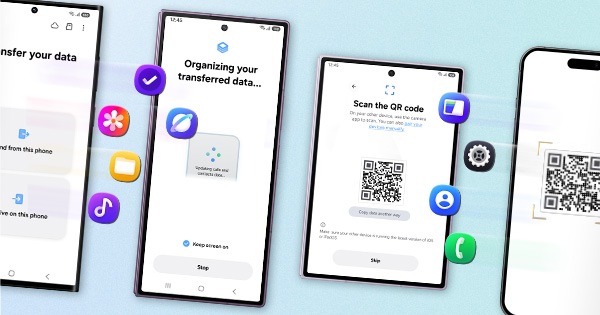
1. Kindly create a data backup of your device via the SMART switch mobile application or http://www.samsung.com/in/support/smartswitch pc suite.
2. Remember the Google password before resetting the device because it is required during initial setup.
3. If you do not remember, then advise to reset (Forgot password) your Google account.
Path: Settings> General Management>Reset>Temporary cloud backup or External storage backup>After backup tab on Factory data reset to reset your device to its factory default settings.
This will erase all data, including files and downloaded apps.
In case the issue still occurs, please visit the service center for a physical inspection of your device. You can locate your nearest service center with this given link: https://www.samsung.com/in/support/service-center/
Warm Regards,
Samsung Customer Support