

- Mark as New
- Bookmark
- Subscribe
- Subscribe to RSS Feed
- Permalink
- Report Inappropriate Content
05-15-2025 09:05 PM in
Galaxy S- « Previous
-
- 1
- 2
- Next »
- Mark as New
- Subscribe
- Subscribe to RSS Feed
- Permalink
- Report Inappropriate Content
05-15-2025 09:16 PM in
Galaxy S
- Mark as New
- Subscribe
- Subscribe to RSS Feed
- Permalink
- Report Inappropriate Content
05-15-2025 09:24 PM in
Galaxy S
 cs_member10
- Mark as New
- Subscribe
- Subscribe to RSS Feed
- Permalink
05-16-2025 11:19 AM in
Galaxy SDear Samsung member,
Greetings from Samsung Customer Support!
We regret to hear about your experience with our product. Please believe that this is not a usual occurrence.
Please perform the below-mentioned troubleshooting steps, these may help in resolving your concerns.
▶ Galaxy device Battery drainage issue: Note: Charge in one go instead of charging many times as it affects the life span of battery and battery performance.
1. Perform Battery Optimization: Go to Settings > Select Device Maintenance/Device Care > Optimize > Optimize all options like Battery, Storage, and Memory.
2. Check device network fluctuation.
Avoid usage in areas with low network/fluctuation.
3. Adjust screen timeout settings: Go to Settings > Display > Screen timeout > Select the minimum screen timeout.
4. Check which application is or interface is using more battery from device care and try to update app or avoid using that app.
6. Turn off auto sync of e-mails, app data etc.
Open notification panel > Turn off auto sync option.
▶ Galaxy device heating issue: 1.Turn off Wi-Fi, GPS, Bluetooth, and other connectivity features when not using them.
2. Decrease the screen brightness.
3. Close background running apps.
4. Uninstall the unnecessary apps.
5. Reduce long duration of graphics intensive gaming sessions as it may cause heating issue.
6. Avoid usage of mobile phone when charging.
▶ Galaxy device application issue: ● Check app Cache: Settings> Device care> Storage> Clean now.
● Clear cache memory of a particular application: Settings> Apps> Now pick the app that you like to clear off the cache memory> Storage> Clear Cache.
● Uninstall and reinstall the app:
1-Please ensure a stable Wi-Fi connection to your mobile. Downloading via mobile networks may result in additional charges.
2-Please ensure enough storage space in your device.
3-Please ensure your device has sufficient battery for updating software.
● Uninstall an App: From your Home screen, swipe up to open the App drawer. Find the app you want to remove, and then touch and hold the app's icon until a popup menu appears. Tap Uninstall, and then tap OK to confirm.
● Some preinstalled apps cannot be uninstalled. Tap App info, tap More options, and then tap Uninstall updates. Or, tap Disable if you do not plan on using the app.
● Reinstall the App: Play Store apps: Open the Play Store, and tap your profile picture. Tap My apps & games, and then tap Library. Find the app you want, and then tap Install.
● Keep your apps updated: Play Store apps: Open the Play Store, tap, and then tap your profile picture. Tap My apps & games. From here, you can either tap Update next to individual apps or tap Update All to install all available updates.
● Update device software (If available): Settings > Software update > Download and install > Checking for software update > Software update available > Download > Downloading updates > Install now.
● You can reset your device by following the steps:
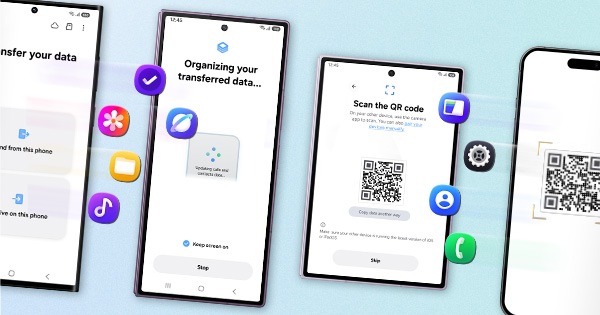
1. Kindly create a data backup of your device via the SMART switch mobile application or http://www.samsung.com/in/support/smartswitch pc suite.
2. Remember the Google password before resetting the device because it is required during initial setup.
3. If you do not remember the password then advise to reset (Forgot password) your Google account.
Path: Settings> General Management.>Reset>Temporary cloud backup or External storage backup>After backup tap on Factory data reset to reset your device to its factory default settings. This will erase all data, including files and downloaded apps.
If the issue persists, kindly report the problems with a log file. To share a log file, click on the Samsung Members Application (Open Samsung Members Application > Support> Tap on send feedback> Choose Composer> Select error report> select the appropriate issue category> Type your query and send).
Warm Regards,
Samsung Customer Support

- Mark as New
- Subscribe
- Subscribe to RSS Feed
- Permalink
- Report Inappropriate Content
05-16-2025 11:59 PM in
Galaxy S
- « Previous
-
- 1
- 2
- Next »
