

- Mark as New
- Bookmark
- Subscribe
- Subscribe to RSS Feed
- Permalink
- Report Inappropriate Content
08-03-2026 06:40 PM in
Galaxy F
 cs_member10
- Mark as New
- Subscribe
- Subscribe to RSS Feed
- Permalink
08-04-2026 12:54 PM in
Galaxy FDear Samsung Member,
Greetings from Samsung Customer Support!
Please perform the below-mentioned troubleshooting steps, these may help in resolving your concern.
● Check space availability:
Is there sufficient space available on your device?
Kindly check the space on your device:
Path: Settings > Battery and device Care > Storage
To improve the device performance there should be sufficient space.
● Kindly check the RAM in your device:
Path: Settings > Battery and device Care > Memory
The device's RAM should be free to improve performance. So clear the RAM memory once a day.
● Check app cache:
Please follow the below steps
Path: App's screen>>Settings>>Tap on Device Care>> Tap on Storage>>Tap on CLEAN NOW.
Note: To delete files or uninstall apps that you do not use anymore, select a category under USER DATA. Then, tick items to select and tap DELETE or UNINSTALL.
● Clear cache memory of a particular application:
Path: Apps screen>>Settings>. Tap on Apps>>Now pick the app that you like to clear off the cache memory. For example, 'Samsung Internet'>> Tap on Storage>>Tap on Clear Cache.
● Close Background Apps
Is there any unnecessary application running in the background?
Too many applications running in the background may cause the device to hang. Kindly close the background running applications in the device (''Tap the left side key & close the background running application'').
● Remove third-party applications:
Kindly uninstall that application by following the below steps and check once as the issue might occur due to third-party applications.
Navigate to Settings>> Tap on Apps>> Select the third-party application from Apps>>Tap on Uninstall
● Remove the memory card:
Due to some ''unauthorized'' files in the memory card device's performance will be slow, so if you are using the memory card in your device. I will advise you to safely remove it from your device. For this follow the below steps:
● Before removing the memory card, first, unmount it for safe removal.
On the Home screen, tap Apps > Settings > Device maintenance > Storage > More option > Storage settings > SD card > Unmount.
Insert the ejection pin into the hole on the tray to loosen the tray
Note: Ensure that the ejection pin is perpendicular to the hole. Otherwise, the device may be damaged.
● Pull out the tray gently from the tray slot.
● Remove the memory card.
● Insert the tray back into the tray slot
Note: Please ensure that the memory card is not removed while the device is transferring or accessing information.
Doing so can cause data to be lost or corrupted or damage the memory card or device.
Samsung is not responsible for losses that result from the misuse of damaged memory cards, including the loss of data.
● Remove third-party accessories:
Due to ''3rd Party'' (Not provided by Samsung) Accessories, (Like a charger, USB Cable'' etc.) device might also hang. So kindly avoid the usage of these 3rd party accessories.
● Please perform the "Battery Status (Battery life + Battery Capacity)" test using the Samsung Members app.
Open the Samsung Members app (Battery Status (Battery life + Battery Capacity))
For battery issue kindly follow below steps:
● Battery life depends on how the battery is used. Note that different devices have different battery life. The expected battery life for your model can be found in the manual.
● Please always use a standard charging procedure. Always charge in one go instead of charging many times as it affects the life span of the battery and battery performance.
● Perform Battery Optimization: Battery optimization helps you boost the battery performance of your device. To check battery optimization:
Settings > Select Device Maintenance/Device Care > Optimize > Optimize all options like Battery, Storage, and Memory
● Turn off Bluetooth, Wi-Fi, mobile hotspot, NFC, etc . when not in use.
● We recommend you avoid using in areas with low network/fluctuation because these cause the battery to drain very fast.
● Reduce the display brightness level or set the device to auto-brightness mode.
Swipe down on the home screen to open the notification panel
Turn on the Auto-brightness option if available.
It will automatically adjust the display brightness of your device according to ambient light & will reduce battery drainage.
● Adjust screen timeout settings: Settings >> Display >> Screen timeout >> Select the minimum screen timeout.
● Kindly check which application or interface is using more battery from device care and try to update the app or avoid using that app.
● Close background running apps.
● We request you to turn off the auto-sync option, it will stop the synchronization of the device with the server & reduce the battery drainage.
Swipe down on the home screen to open the notification panel.
Turn off the auto-sync option.
● Reset the device:
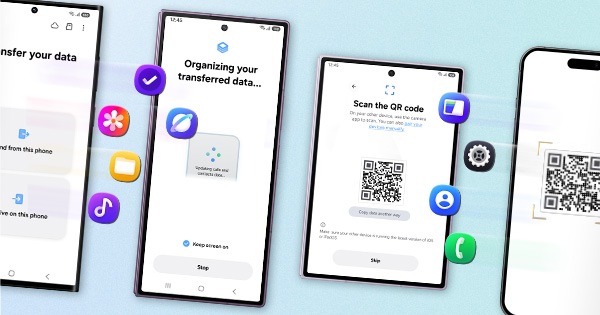
Note: Kindly create a data backup of your device via the smart switch mobile application or http://www.samsung.com/in/support/smartswitch pc suite.
Remember the Google password before resetting the device because it is required during the initial setup.
● If you do not remember then reset (Forgot password) your Google account.
For this, Open Gmail (https://accounts.google.com/servicelogin)>>Select forgot password>>Select "try another way" like mobile number, security question, etc.>>Select Next>>Enter a new password>>Tap on Next.
● How to reset:
Please follow the below steps to reset the device:
● Go to Settings.
● Tap on General Management.
● Tap on Reset.
● Tap on Temporary cloud backup or External storage backup
● After backup tab on Factory data reset to reset your device to its factory default settings.
This will erase all data, including files and downloaded apps.
If the issue persists, kindly report the problems with a log file. To share a log file, Open Samsung Members Application > Support> Tap on send feedback> Choose Composer> Select error report> Select the appropriate issue category> Type your query and send.
Warm Regards,
Samsung Customer Support

- Mark as New
- Subscribe
- Subscribe to RSS Feed
- Permalink
- Report Inappropriate Content
08-06-2026 12:20 AM in
Galaxy F
- Mark as New
- Subscribe
- Subscribe to RSS Feed
- Permalink
- Report Inappropriate Content
08-06-2026 12:25 AM in
Galaxy F
