Original topic:

How to take a backup and install software updates using Smart Switch.

(Topic created on: 09-05-2021 10:37 AM)
479 Views
Anikroyale
Expert Level 5
Options
Tech Talk
[POST LAST UPDATED ON (06/10/2021)]

Hi guys, 

Anik this side and today, I decided to make a post on Smart Switch and share a way to back up your device data and install software updates in such a way which is better when compared to OTA (Over The Air) updates. Now, this does not guarantee that the update will be flawless, but it will reduce the risk of having bugs. 

Smart Switch is a first party application developed by Samsung for easy data transfers and software updates for your Galaxy device.

So, let's start. 

image

A quick word here, the update size will be fairly large, like 5 to 6 GB because it downloads the whole firmware. Rest assured, no data loss will occur.

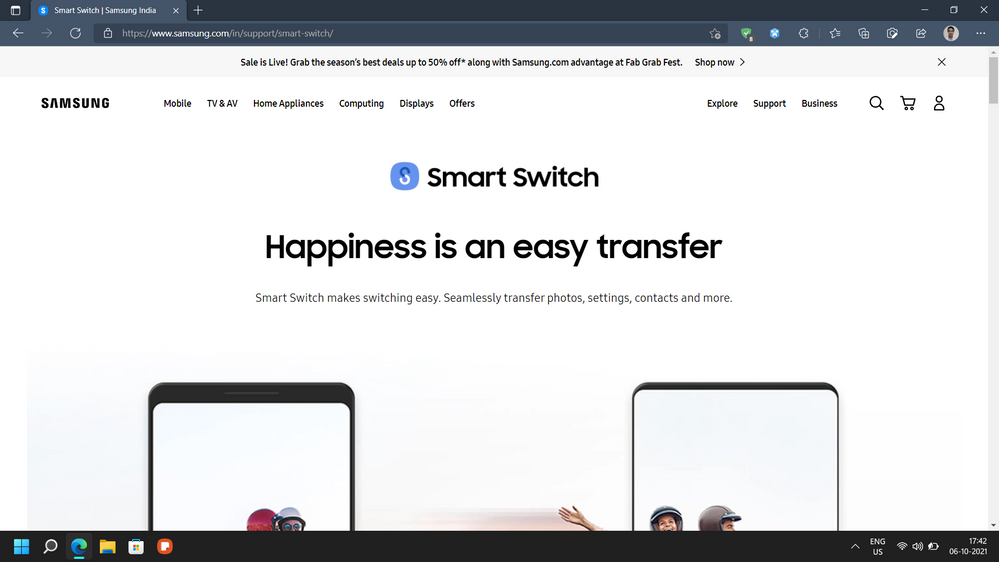
First, visit this website, scroll down a bit and download Smart Switch PC for Windows or macOS, depending on what you use. 


image

image
Click on Windows or macOS, depending on your PC

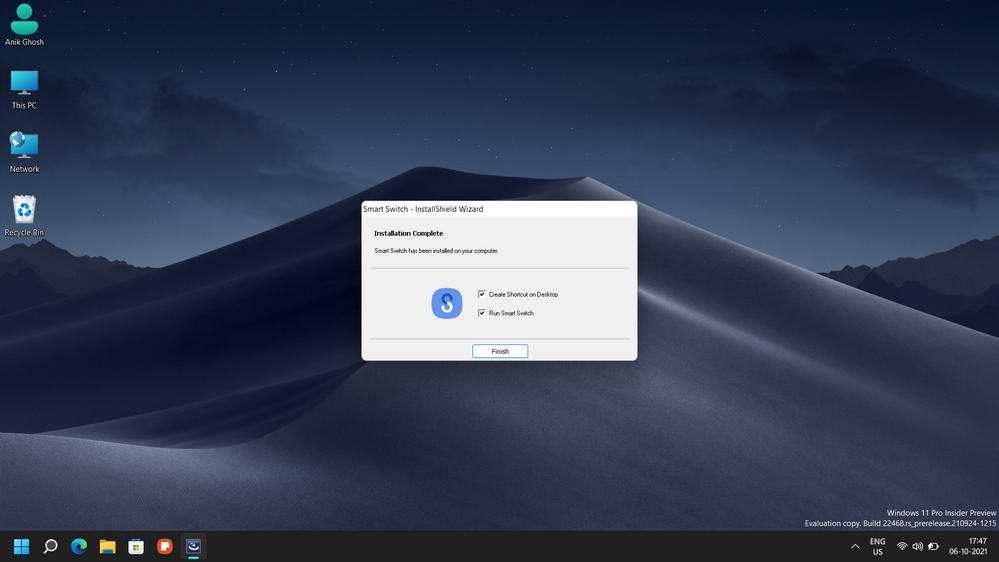
After downloading, install Smart Switch PCWITHOUT connecting your phone. Images for installation help is provided below. 

image
Agree to both terms and click Next

image
Setup is now installing Smart Switch on your PC

image
Click Finish after installation is complete

Then, go visit this Galaxy Store link and install Smart Switch Mobile on your phone:


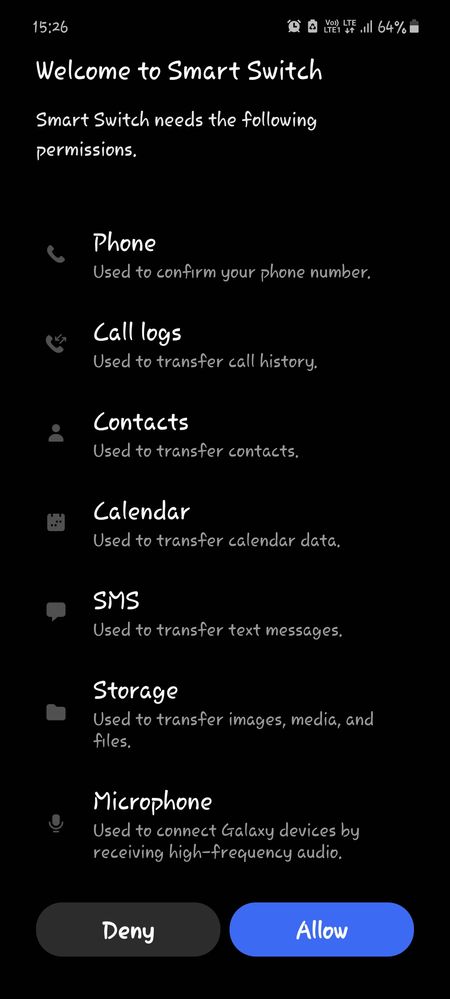
Now, open Smart Switch mobile and set things up as shown on screen.

image
Click allow here


image
Don't touch anything here, just close the app

Now back to your PC:

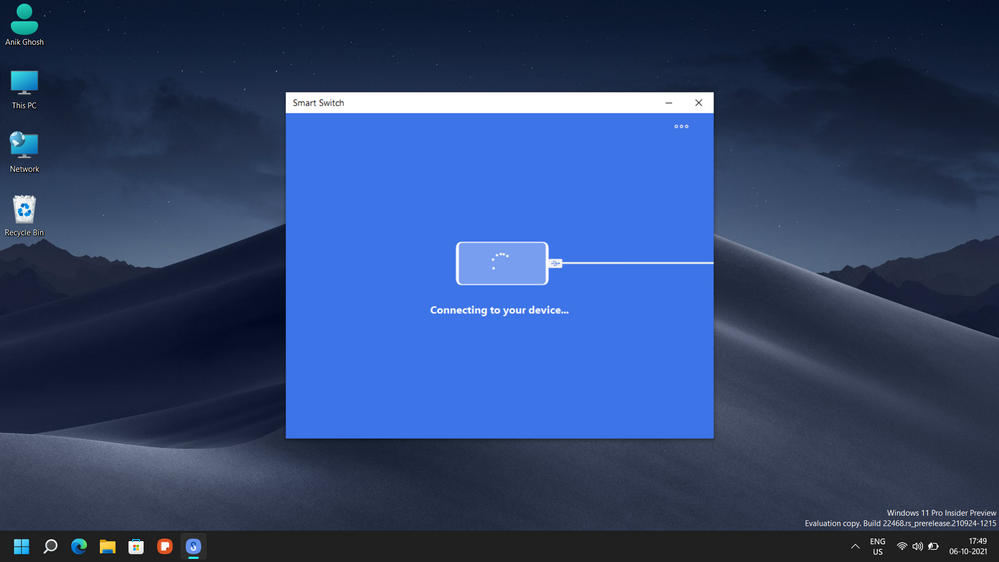
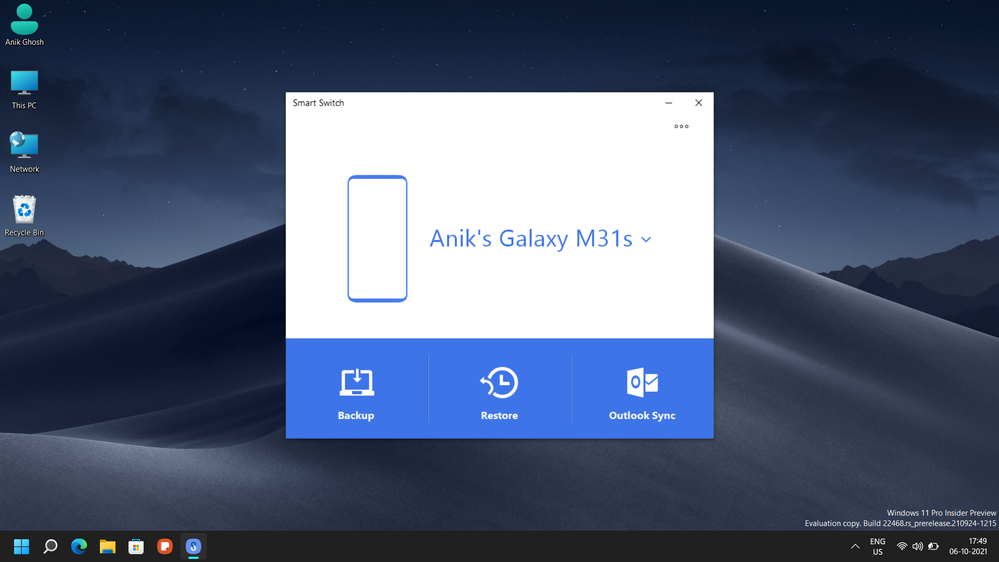
After installation is complete, go ahead and open Smart Switch PC and connect your phone. Allow access on your phone if a prompt appears. Else your phone will pop up in front of your screen.
 

image
Connect your phone and PC via USB cable after this screen appears

image
Smart Switch will connect to your device after you have allowed access

Take a backup using Smart Switch. (Its not compulsary to do this step, but it's always a good idea to take a backup just in case).

image
Click on Backup

image
Select items you want to back up and click OK

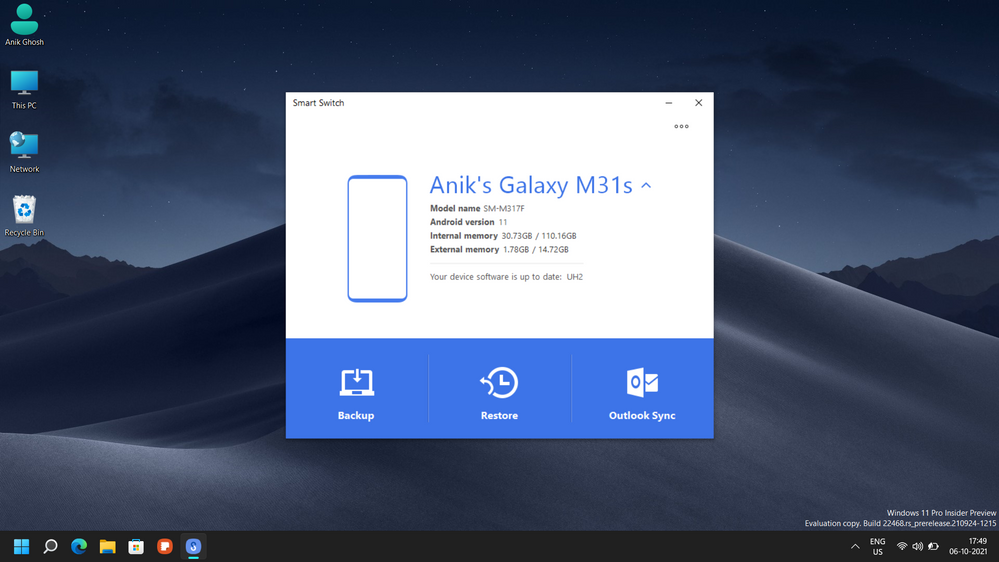
After the backup is complete, come back to the home screen of Smart Switch and click on the down arrow beside the name of your phone and at the bottom, it will show whether an update is available or not. If not, then it will show "Your device software is upto date". And if an update is available, then click on Update and wait. 

image
Click on arrow beside the name of your device for details.Update will be shown below the storage consumption lines

DO NOT DISCONNECT THE CABLE WHILE THE UPDATE IS DOWNLOADING AND INSTALLING.

That's it! Enjoy! If you face any issues, just write below and I will try my best to help you!

That's it for now, I will catch you guys next time!

17 Comments
Tech Talk
yeah cable has to be disconnected aftee everything is done
just last question what if net is lost in the middle of the download 😬
like i get a call on the other sim or whatever xyz reason will it resume when the connections comes back( * I wil not remove the cable though)
and Thanks for your help Anik👍👍
0 Likes
Anikroyale
Expert Level 5
Tech Talk
I actually have not experienced something like thay because I have volte, so internet connection remains intact. I guess you have to see what happens. If it resumes download, well and good, but if not, you have to start over.
Tech Talk
okayy cool thanks 👍
Tech Talk
Excellent explanation 👌🏻. But I have a doubt.
Is smartswitch available in microsoft store? Or we should download from chrome?
0 Likes
Anikroyale
Expert Level 5
Tech Talk
No, Smart switch is not available on Microsoft store.
0 Likes
YashWahengbam
Active Level 3
Tech Talk
Does this work on all the models of samsung S series?
0 Likes
Anikroyale
Expert Level 5
Tech Talk
It works on all models of Samsung, be it any series.
0 Likes
Anonymous
Not applicable
Tech Talk
🤍
0 Likes