

- Mark as New
- Bookmark
- Subscribe
- Subscribe to RSS Feed
- Permalink
- Report Inappropriate Content
04-23-2025 05:48 PM in
Galaxy S


- Mark as New
- Subscribe
- Subscribe to RSS Feed
- Permalink
- Report Inappropriate Content
04-23-2025 05:49 PM in
Galaxy SIf this reply answered your query please tap 3 vertical dots to the right of my reply and tap "Resolved". Thank you 😊

- Mark as New
- Subscribe
- Subscribe to RSS Feed
- Permalink
- Report Inappropriate Content
04-23-2025 05:50 PM in
Galaxy S
 cs_member10
- Mark as New
- Subscribe
- Subscribe to RSS Feed
- Permalink
04-24-2025 11:17 AM in
Galaxy SDear Samsung Member,
Greetings from Samsung Customer Support!
At Samsung, we always aim to provide impeccable services to our customers, and we highly regret that you feel this way.
Please follow these easy troubleshooting steps which may help in resolving this issue:
● Kindly restart your device once: To power off through Quick settings, swipe down from the top of the screen. Tap the Power icon in the upper right of the screen (next to the Settings icon), and then tap Power off. Kindly power buttons on the device after by pressing power for 5-7 seconds.
● Update software on device: apps screen > Settings > Software update > Download and install > Download > Install now.
● Reset the device:
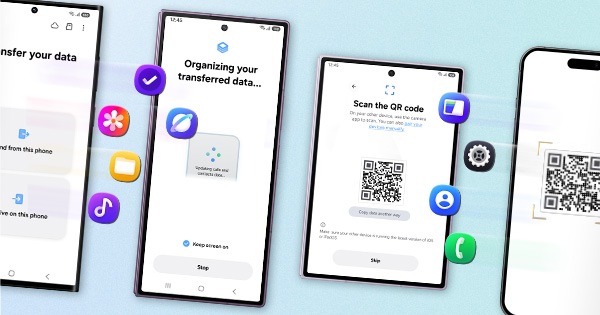
Note: Kindly create data backup of your device via SMART switch mobile application or http://www.samsung.com/in/support/smartswitch pc suite. Remember Google password before resetting the device because it required during initial setup. If you don't remember the password, then reset (Forgot password) your google account.
Settings > General Management > Reset > Temporary cloud backup or External storage backup > Factory data reset (This will erase all data, including files and downloaded apps.)
If the issue still occurs, please visit the service centre for a physical inspection of your device. You can locate your nearest service centre with this given link: https://www.samsung.com/in/support/service-center/
Warm Regards,
Samsung Customer Support
- Mark as New
- Subscribe
- Subscribe to RSS Feed
- Permalink
- Report Inappropriate Content
04-27-2025 06:58 PM in
Galaxy S
