- Mark as New
- Bookmark
- Subscribe
- Subscribe to RSS Feed
- Permalink
- Report Inappropriate Content
06-06-2026 09:19 PM in
Galaxy S
- Mark as New
- Subscribe
- Subscribe to RSS Feed
- Permalink
- Report Inappropriate Content
06-06-2026 09:25 PM in
Galaxy S
 cs_member10
- Mark as New
- Subscribe
- Subscribe to RSS Feed
- Permalink
06-07-2026 05:26 PM in
Galaxy SDear Samsung Member,
Greetings from Samsung Customer Support!
As per your query, we would share some quick troubleshooting steps which might help you to resolve your issue.
• Check the physical condition of your camera lens:
In case, of a broken camera lens/scratchy camera lens: please visit the service center for a physical inspection of the device
Otherwise, please move to further steps:
▶ Check camera lens cleaning:
Please check there is no laminated or tempered glass pasted on the camera.
Use a microfiber cloth or a cleaning wipe. Gently remove the fingerprints, dirt, and dust from the camera lens.
▶ Reset camera settings:
• Please follow the below steps to reset camera settings:
▶ From the home screen tap on Camera.
▶ Tap on Settings.
▶ Scroll up and tap on Reset settings.
▶ Tap on Reset.
▶ Latest software update:
Please ensure a stable Wi-Fi connection to your mobile. Downloading via mobile networks may result in additional charges.
Please ensure enough storage space in your device.
Please ensure your device has sufficient battery for updating software. (above 50%)
• Please follow the below steps to update the software:
▶ Navigate to the app's screen and tap on Settings.
▶ Tap on Software update.
▶ Tap on Download and install.
▶ Checking for software updates.
▶ Software update available.
▶ Tap on Download.
▶ Downloading updates.
▶ Tap on Install Now.
Note: Your phone will restart after the update is installed
▶ Reset the device:
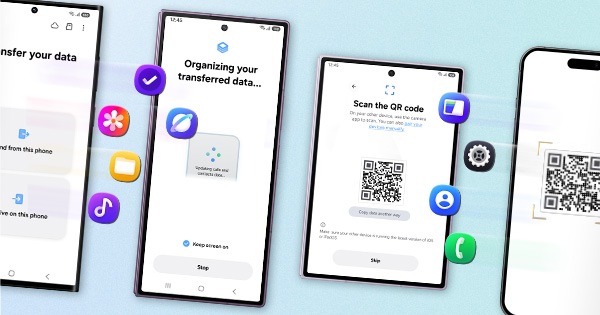
▶ Kindly create a data backup of your device via the SMART switch mobile application or http://www.samsung.com/in/support/smartswitch PC suite.
▶ Remember the Google password before resetting the device because it is required during initial setup.
▶ If you do not remember, then reset (Forgot password) your Google account.
For this:
Open Gmail (https://accounts.google.com/servicelogin)
▶ Select forgot password
▶ Select "try another way" like mobile number, security question, etc.
▶ Select Next.
▶ Enter a new password.
▶ Tap on Next.
• How to reset:
▶ Navigate to the apps screen and tap on Settings.
▶ Tap on General Management.
▶ Tap on Reset.
▶ Tap on Temporary cloud backup or External storage backup
▶ After backup tab on Factory data reset to reset your device to its factory default settings.
This will erase all data, including files and downloaded apps.
After Performing the troubleshooting steps if the issue still persists, kindly get back to us with additional information please share the device log file within 15 minutes of the issue occurrence by using the error report option via the Samsung Member application.(Open Samsung member application >> tap on support >> tap on send feedback >> choose composer option >> select error >> select the appropriate category >> type your query)
Warm Regards,
Samsung Customer Support