- Mark as New
- Bookmark
- Subscribe
- Subscribe to RSS Feed
- Permalink
- Report Inappropriate Content
04-15-2026 01:09 AM in
Galaxy S
- Mark as New
- Subscribe
- Subscribe to RSS Feed
- Permalink
- Report Inappropriate Content
04-15-2026 07:31 PM in
Galaxy S
- Mark as New
- Subscribe
- Subscribe to RSS Feed
- Permalink
- Report Inappropriate Content
04-15-2026 07:31 PM in
Galaxy S
 cs_member10
- Mark as New
- Subscribe
- Subscribe to RSS Feed
- Permalink
04-15-2026 09:30 PM in
Galaxy SDear Samsung Member,
Greetings from Samsung Customer Support!
As per your concern, we would request you to kindly perform the following steps to resolve your issue.
● Ensure that your fingers are clean and dry.
Note: If the skin on your fingertips is peeling or cracking, or your fingerprint is difficult to capture, the fingerprint ID on your phone may not work.
● If your fingerprints fail to unlock the phone while the phone is recharging, remove it from the charger and try again. If you are charging the phone with a charger and data cable from other brands when you use fingerprints to unlock the phone, they may interfere with the fingerprint sensor and cause the recognition to fail.
● Clean the fingerprint sensor with a soft cloth. Make sure the fingerprint sensor is dry and free from any debris that may cause the sensor to be unable to recognize the fingerprint.
● Remove the current fingerprint and set up the fingerprint again. When you touch the sensor to set up a fingerprint, make sure you set the entire fingerprint, including the outer area of your fingertip. Setting the entire fingerprint area enables successful fingerprint recognition with any grip.
● How to remove Fingerprint: Path: Settings> Biometrics and Security> Fingerprints> Fingerprint1> Remove> Remove again to confirm.
● How to Set up Fingerprint: Path: Settings>Biometrics and Security> Fingerprints> Fingerprint> Scan your fingerprint> Place your finger on the sensor, then lift it off when you feel a vibration> Continue> Reposition your finger each time to capture the edge of your fingerprint> Done> Fingerprint added successfully.
● Update the software if available: https://www.samsung.com/in/support/mobile-devices/samsung-galaxy-smartphone-how-to-update-software/
● You can reset your device by following the steps.
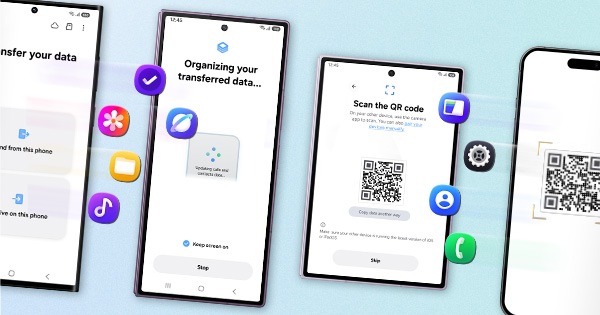
1. Kindly create a data backup of your device via the SMART switch mobile application or http://www.samsung.com/in/support/smartswitch pc suite.
2. Remember the Google password before resetting the device because it is required during initial setup.
3. If you do not remember then advise to reset (Forgot password) his/her Google account.
Path: Settings> General Management.>Reset>Temporary cloud backup or External storage backup>After backup tab on Factory data reset to reset your device to its factory default settings.
This will erase all data, including files and downloaded apps.
If the issue still occurs, please visit the service center for a physical inspection of your device. You can locate your nearest service center with this given link: https://www.samsung.com/in/support/service-center/
Warm Regards,
Samsung Customer Support