- Mark as New
- Bookmark
- Subscribe
- Subscribe to RSS Feed
- Permalink
- Report Inappropriate Content
yesterday in
Galaxy S
- Mark as New
- Subscribe
- Subscribe to RSS Feed
- Permalink
- Report Inappropriate Content
yesterday in
Galaxy S
- Mark as New
- Subscribe
- Subscribe to RSS Feed
- Permalink
- Report Inappropriate Content
yesterday in
Galaxy S
- Mark as New
- Subscribe
- Subscribe to RSS Feed
- Permalink
- Report Inappropriate Content
yesterday in
Galaxy S
- Mark as New
- Subscribe
- Subscribe to RSS Feed
- Permalink
- Report Inappropriate Content
yesterday in
Galaxy S
- Mark as New
- Subscribe
- Subscribe to RSS Feed
- Permalink
- Report Inappropriate Content
yesterday in
Galaxy S
- Mark as New
- Subscribe
- Subscribe to RSS Feed
- Permalink
- Report Inappropriate Content
yesterday in
Galaxy S
- Mark as New
- Subscribe
- Subscribe to RSS Feed
- Permalink
- Report Inappropriate Content
yesterday in
Galaxy S
- Mark as New
- Subscribe
- Subscribe to RSS Feed
- Permalink
- Report Inappropriate Content
7 hours ago in
Galaxy S
 cs_member10
- Mark as New
- Subscribe
- Subscribe to RSS Feed
- Permalink
3 hours ago in
Galaxy SDear Samsung Member,
Greetings from Samsung Customer Support!
As per your concern, we would request you to kindly perform the following steps to resolve your issue.
● Use a microfiber cloth or a cleaning wipe to clean the camera lens.
● Reset the camera settings: Tap on Camera>Settings>Reset settings>Reset.
● Clear camera application data: Apps>Camera>Storage>Clear Data
● Check app cache: Settings > Apps > Camera> Storage > Clear Cache.
● Update the software if available: https://www.samsung.com/in/support/mobile-devices/samsung-galaxy-smartphone-how-to-update-software/
● You can reset your device by following the steps:
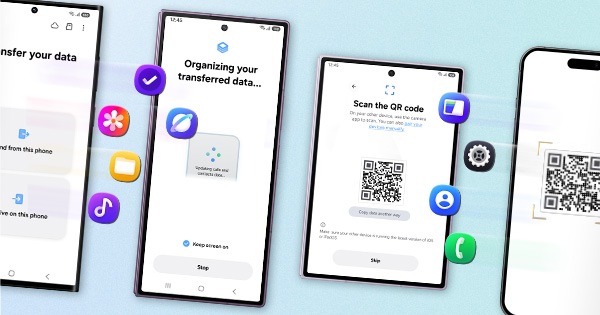
1. Kindly create a data backup of your device via the SMART switch mobile application or http://www.samsung.com/in/support/smartswitch pc suite.
2. Remember the Google password before resetting the device because it is required during initial setup.
3. If you do not remember then advise to reset (Forgot password) his/her Google account.
Path: Settings> General Management.>Reset>Temporary cloud backup or External storage backup>After backup tab on Factory data reset to reset your device to its factory default settings.
This will erase all data, including files and downloaded apps.
If the issue persists, kindly report the problems with a log file. To share a log file, Open Samsung Members Application > Support> Tap on send feedback> Choose Composer> Select error report> select the appropriate issue category> Type your query and send.
Warm Regards,
Samsung Customer Support