

- Mark as New
- Bookmark
- Subscribe
- Subscribe to RSS Feed
- Permalink
- Report Inappropriate Content
06-12-2026 08:09 PM in
Galaxy A
- Mark as New
- Subscribe
- Subscribe to RSS Feed
- Permalink
- Report Inappropriate Content
06-12-2026 10:43 PM in
Galaxy A
 cs_member10
- Mark as New
- Subscribe
- Subscribe to RSS Feed
- Permalink
06-13-2026 04:08 PM in
Galaxy ADear Samsung Member,
Greetings from Samsung Customer Support!
We regret to hear about your experience with our product. Please believe that this is not a usual occurrence.
We would request you to kindly perform the following steps to resolve your issues.
→ Run System Diagnostics:
Go to Settings > Battery and device care > Diagnostics option.
Press test all, you can also choose one or multiple.
→ Kindly use a genuine Samsung charger.
We always recommend using a genuine Samsung charger for charging your device.
→ There are two methods to disable the auto restart function.
1- Tap on Settings> General management>Reset > Disable Auto restart (if enabled)> Auto restart disabled.
2- Tap on Settings> Battery and device care> Three dots> Automation> Auto restart at set times if enabled.
→ If you are facing this issue after installing any new application then uninstall that application.
Tap on Settings> Apps > desired app> Uninstall> Ok.
→ Remove phone case to prevent squeezing power button.
1. Clear phone storage, keep 20% space free.
2. Use phone between 16°-35°temperature.
● Update the software if available: https://www.samsung.com/in/support/mobile-devices/samsung-galaxy-smartphone-how-to-update-software/
● You can reset your device by following the steps:
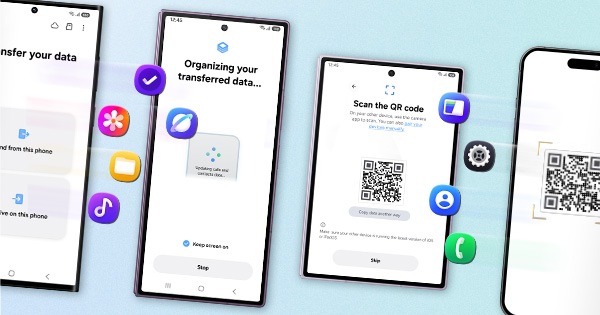
1. Kindly create a data backup of your device via the SMART switch mobile application or http://www.samsung.com/in/support/smartswitch pc suite.
2. Remember the Google password before resetting the device because it is required during initial setup.
3. If you do not remember, then advise to reset (Forgot password) his/her Google account.
Path: Settings> General Management.>Reset>Temporary cloud backup or External storage backup>After backup tab on Factory data reset to reset your device to its factory default settings. This will erase all data, including files and downloaded apps.
If the issue still occurs, please visit the service centre for a physical inspection of your device. You can locate your nearest service center with this given link: https://www.samsung.com/in/support/service-center/
Warm Regards,
Samsung Customer Support



- Mark as New
- Subscribe
- Subscribe to RSS Feed
- Permalink
- Report Inappropriate Content
06-21-2026 12:21 AM in
Galaxy A
- Mark as New
- Subscribe
- Subscribe to RSS Feed
- Permalink
- Report Inappropriate Content
06-21-2026 12:17 AM in
Galaxy A
