1. Outline of Document Scan 2. Introducing Document Scan technology 3. How to scan documents in a Galaxy Camera 4. Notes
Outline of Document Scan
Document scan uses professional document scan equipment like something found in an all-in-one printer. This technology detects a document visible to the camera and processes the image to create a legible document scan.
We aim to make user lives simpler. To this end, we are working on different technologies for document scanning that will allow you to easily and quickly scan documents you want to store without any special equipment. You can paste the scans onto e-notes or quickly share the information with others on smartphones and tablets.
Introducing Document Scan technology
The document scan feature has to locate information on different areas of the document and then convert those areas of the document image into a readable format.
The feature in charge of culling information from documents identifies the document area within the camera view, marks the smallest quadrangle encapsulating the document area, converts different quadrangle-shaped documents into a rectangle based on this, and stores them.
Starting with the Galaxy S21, we have added the feature to straighten out/de-warp any rolled or folded document and remove any shadows, further improving their quality.
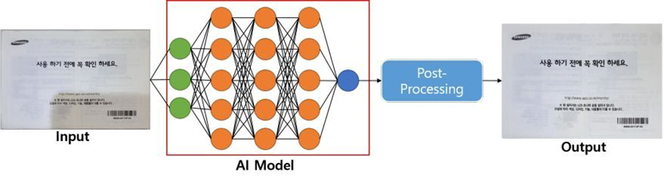
Both the unfold and shadow removal features use artificial intelligence (AI). The AI processing smoothens any fold or removes any shadow, as shown in the images below.
How to scan documents using a Galaxy Camera?
1. Check camera settings before using (on ONEUI 5.1) First, you need to make sure all document scan-associated features are enabled. You won’t be able to scan documents unless you turn on ‘Scene optimizer’ and ‘Scan documents and text’.
2.Usage in detail (on ONEUI 5.x) The Scene optimizer recognizes a document as a text scene when you are using the rear camera and simultaneously starts detecting quadrangular areas of the document.
You can press the scan button and adjust the area of the document to your liking. Pressing the save button will create and save a legible version of the document image.
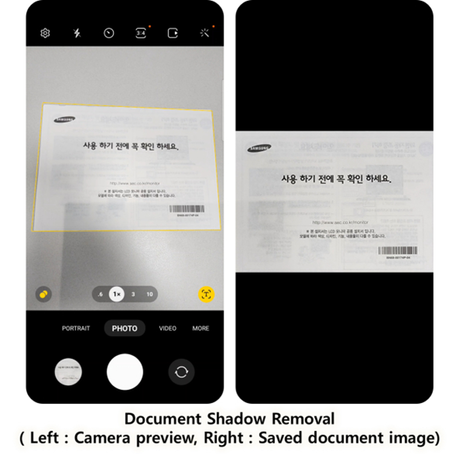
3. Examples of scanning different types of documents (on ONEUI 5.x) You can take a look at the scanned results on a Samsung Galaxy S22 Ultra below.
The image on the left shows how the Document scan on a Samsung camera highlights the document perimeter upon detection, and the image on the right shows how the image is saved after the scan.
4. Capture guide for optimal operation
Document detection
Twenty percent or more of the image needs to be text to be classified as a document. The camera might not identify pictures with no text as documents.
The original shape should be quadrangular, and all four vertices of it must be captured on the camera screen without any obscurity.
Document capture
The document and the camera should be horizontal/parallel to each other. It is requisite for a clear scan.
If you scan a small-sized document up close, the high-definition camera lens may blur some areas. To avoid this, enlarge the screen using the camera zoom and scan to obtain a clear document image. It cancels out any high-definition lens blur.
Document de-warping and shadow removal
You can max straighten twice-folded documents and only fix 130° to 180° angle folds.
A good rule of thumb is to place a document with consistent folds on the floor, leaving a maximum gap of 4 cm (A4 paper) or 1.5 cm (POS receipt) between the floor and document folds.
The camera takes the horizontal document view as the starting point and can adjust up to 20 degrees.
It can easily remove shadows indoors but may leave traces after removing deeply etched shadows or colors from a document.
Notes
[1] Available in Galaxy S/Note/Fold series and Galaxy A/M series models released in 2019 or later.