Several Galaxy Camera features are optimized after rigorous discussions to enable their easy use for as many users as possible.
It would be the icing on the cake if there were way more options to satisfy the distinct taste of all users. But this could happen only at the expense of the page becoming more complicated. Not only that, but usability could declineif users have to keep familiarizing themselves with how to use new options. So, it is only natural that the number of items in the camera app settings is limited.
To resolve this problem and provide different users with options that are up their alley, we have come up with an app you can download from the good lock or the galaxy store. But Camera Assistant is not available on the default camera app setting.
HDR (High Dynamic Range) captures the detail in both the bright and dark areas of an image and video. Earlier you could select whether or not to apply the “Auto HDR” option in the settings screen of the camera app. Now, this has changed and is applied by default from One UI 4.1 onwards.
There is a pronounced difference between the resultant photos taken with and without HDR. It is up to your discretion to apply this option or not.
2. Picture softening
Advanced Settings: Off / Medium / High
Scope of application: Photo, Portrait
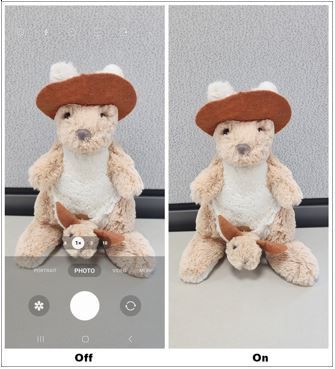
The default quality settings in the Galaxy camera let you click detailed and clear pictures. You could like a soft picture quality better than a clear one, based on what you prefer. If you want a softer line and texture in the picture, especially for portraits where you want the skin and hair to have a softer contour, this is the option for you.
※ The ‘soften pictures’ option is off by default in the advanced settings of the Galaxy S22. The On configuration is the same as what you see in High (100%).
3.Auto lens switching
Advanced Setting: Off / On
Scope of Application: Photo, Video, Food, Night
The appropriate lens gets selected automatically by default. It analyses the ambient brightness and distance from the subject of photography, to present you with a lens setting that is conducive to clicking the best quality photo with ease. But, you also have a degree of freedom and license to click different kinds of photos. It lets you select the lens, so you can tailor it to the shooting environment and the subject. If you want to pick out the lens and not use the optimal lens setting provided by the Galaxy camera, you can give this option a go.
4.Quick tap shutter
Advanced Setting: Off / On
Scope of Application: Photo
Usually, when using the shutter button to click a picture, the shot takes some time from touching the shutter button to taking your finger off it (tens to hundreds of ms). But, this feature improves upon that to reduce the time taken for a shot. It does not wait for you to take your finger off the button but shoots as soon as your finger comes in contact with the button on the camera interface.
You can use this option in combination with quick capture to experience a much quicker shooting speed. However, one image gets shot before any of the following features provided with the shutter button is applied. Use that as a reference.
Floating shutter button: Push the shutter button up and long press to add a floating shutter button
Take burst shots and create GIF: Push the shutter button downwards and long press
Quick take: Long press the shutter button to switch from stills to video without changing the mode
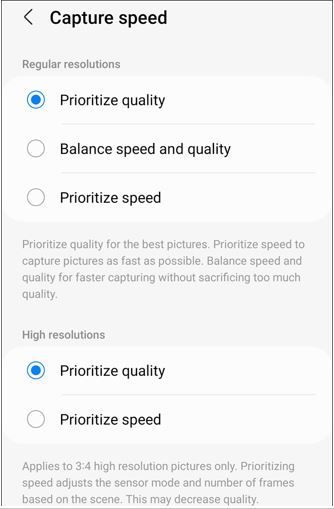
5.Capture speed
Advanced Settings
Default Resolution: image quality first / image quality and speed in the middle / speed first
High Resolution: image quality first / speed first
Scope of Application: Photo (includes all camera lenses and high resolution)
The photo mode of the Galaxy camera lets you click photos with optimal picture quality quite conveniently. If you prefer one above the other between image quality and capture speed in a shot, you can set that using this feature. If quick capture is your target, where you prefer freezing the frame instantly over the quality of the picture, the ‘speed first’ option is for you. But, if you want both, a quick shot with reasonable image quality than what is set as default, the ‘image quality first option’ will come to your rescue.
※ Several options were added after dividing the initial ‘Faster shutter’ [Advanced Setting Off/On, photo is the only scope of application (default camera lens)] into default resolution (medium image quality and speed) and high resolution (speed first).
6.Video recording in Photo mode
Advanced Setting: Off / On
Scope of Application: Photo
Long-pressing the shutter button in photo mode (0.5 seconds) lets you take videos without changing the mode. But, this convenient feature can turn annoying when you want to click still photos and accidentally end up taking videos by long-pressing. If this proves to interrupt your still photo sessions, you can make use of this particular option.
If you set the timer and shoot, the camera takes a specific number of photos (3, 5, 7 shots) at the set interval (1, 1.5, 2, 2.5, 3 seconds) without the repeated pressing of the shutter button. It’s best for taking group photos or selfies using a tripod.
※ ‘Capture interval’ (1, 1.5, 2, 2.5, 3 seconds) option has been added to the existing ‘number of shots’ (Number of pictures after timer, number of shots in advanced setting (1, 3, 5, 7 shots)) to expand the options in timer settings.
If you leave the camera app idle or accidentally open it, it eats into the battery. To prevent this, it automatically exits the app if there is no user input for 2 minutes. The automatic app closure may prove to be disruptive to camera use. In that case, you can set the interval of remaining idle without closure to 1, 2, 5, or 10 minutes.
9. Dim screen while recording
Advanced Setting: Off, 1, 2, 5, and 10 minutes
Scope of Application: Video, Pro Video, Slow Motion, Hyperlapse, Portrait Video, Director's View, Quick Take lock
Dimming the screen brightness in a scenario where you are filming for a long time could save up some battery. The screen is set to dim once there is no additional input by the user after the video is shot and the time set in advanced settings under this option is up. The screen lights up again with some input like a tap, etc. This is useful to film long videos.
10. Clean HDMI (Clean preview on HDMI displays)
Advanced Setting: Off / On
Samsung smartphones can be connected to an external display unit using HDMI. When using the camera app after connecting to an external unit, some UI elements of it (shutter button, settings, etc.) show up along with the camera preview screen. You may need to use the camera app for activities like live broadcasts or home training and the UI elements could prove to be obstructive at this time. Go ahead and use this option to view the camera preview screen without the hindering UI elements.
5th and 9th are not in S22 Ultra, maybe they'll come with ui 5.1 and some points are in camera setting rather than camera assistant so I guess with ui 5.1 they'll be moved to camera assistant for easy use as the beginning of the post itself claims
if you want to give updates to only s series than stop selling A series and M series, and why to sell M53 with 108 MP camera if you cannot give proper camera app and image processing algorithm samsung should stop selling all other phones except s series