

- Mark as New
- Bookmark
- Subscribe
- Subscribe to RSS Feed
- Permalink
- Report Inappropriate Content
03-25-2020 11:48 AM in
Tech TalkNo signal, no problem. You’re covered with Wi-Fi Calling from participating carriers. With this feature, you can make calls and send messages over a Wi-Fi connection when cell service isn't available. Now you’ll never be denied by a weak signal again.
Note: The Wi-Fi Calling feature may not be available on all carriers or devices.
HOW TO TURN ON VOWIFI CALLING: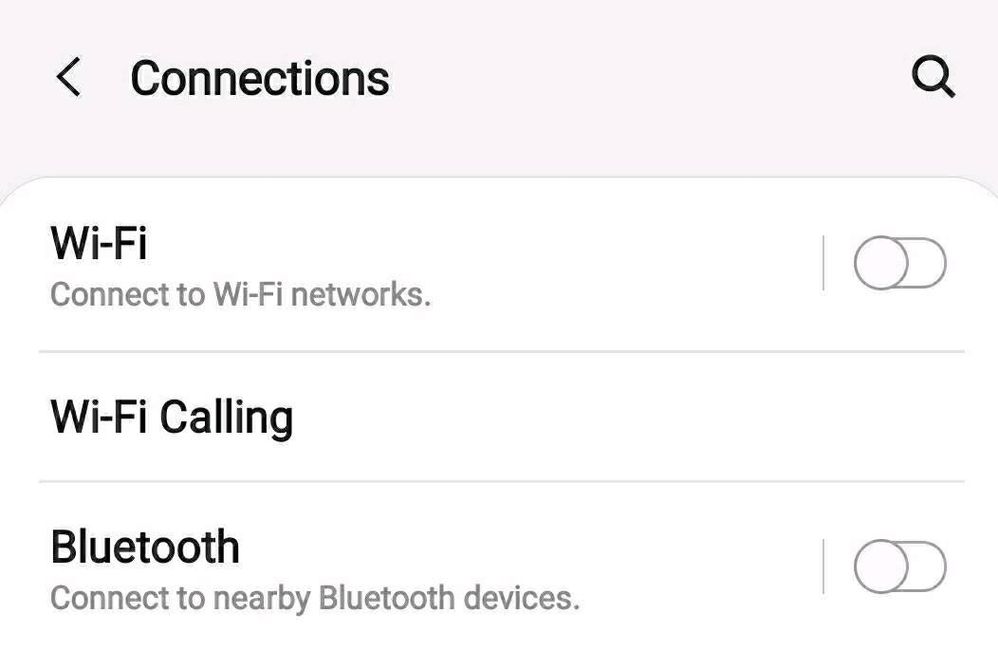
Navigate to and open the Phone app. Tap More options (the three vertical dots), and then tap Settings. Tap Wi-Fi Calling and then tap the switch to turn the feature on. If you receive a popup asking you to enter your address, review and enter the requested information, and then tap Save. Wi-Fi calls will now be enabled. To turn Wi-Fi Calling off, just tap the switch again.
You can also enable Wi-Fi Calling from the Quick settings panel. Swipe down from the top of the screen using two fingers, and then tap the Wi-Fi Calling icon to turn it on.
WI-FI CALLING SETTINGS:Navigate to and open the Phone app. Tap More options, and then tap Settings. Tap Wi-Fi Calling.
You can also open the Quick settings panel by swiping down from the top of the screen using two fingers. Then, press and hold the Wi-Fi Calling icon.
The following settings are available:
Cellular Network Preferred: Your cellular network will be used for calls. If cellular network is unavailable,
Wi-Fi will be used.
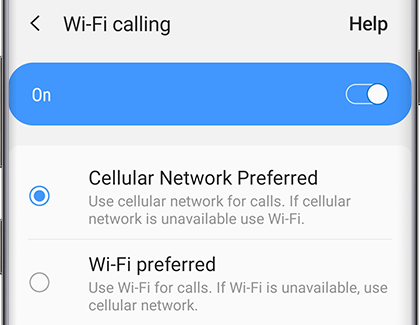
Wi-Fi preferred: Your phone's Wi-Fi network will be used for calls. If Wi-Fi is unavailable, cellular network will be used.
- Tags:
- GalaxyTechfluencer
- « Previous
-
- 1
- 2
- Next »
- Mark as New
- Subscribe
- Subscribe to RSS Feed
- Permalink
- Report Inappropriate Content
05-11-2020 11:57 AM in
Tech Talk
- Mark as New
- Subscribe
- Subscribe to RSS Feed
- Permalink
- Report Inappropriate Content
05-13-2020 08:39 AM in
Tech Talk
- Mark as New
- Subscribe
- Subscribe to RSS Feed
- Permalink
- Report Inappropriate Content
05-20-2020 02:51 PM in
Tech Talk
- Mark as New
- Subscribe
- Subscribe to RSS Feed
- Permalink
- Report Inappropriate Content
05-20-2020 02:35 PM in
Tech Talk
- Mark as New
- Subscribe
- Subscribe to RSS Feed
- Permalink
- Report Inappropriate Content
05-20-2020 02:51 PM in
Tech Talk
- Mark as New
- Subscribe
- Subscribe to RSS Feed
- Permalink
- Report Inappropriate Content
05-26-2020 12:23 PM in
Tech Talk
- Mark as New
- Subscribe
- Subscribe to RSS Feed
- Permalink
- Report Inappropriate Content
06-09-2020 05:35 PM in
Tech Talk
- Mark as New
- Subscribe
- Subscribe to RSS Feed
- Permalink
- Report Inappropriate Content
07-03-2020 12:55 PM in
Tech Talk
- Mark as New
- Subscribe
- Subscribe to RSS Feed
- Permalink
- Report Inappropriate Content
07-08-2020 10:19 AM in
Tech Talk
- « Previous
-
- 1
- 2
- Next »
