- Mark as New
- Bookmark
- Subscribe
- Subscribe to RSS Feed
- Permalink
- Report Inappropriate Content
08-05-2022 05:09 PM in
Galaxy Store (Apps & more)
- Mark as New
- Subscribe
- Subscribe to RSS Feed
- Permalink
- Report Inappropriate Content
08-05-2022 05:34 PM in
Galaxy Store (Apps & more)
- Mark as New
- Subscribe
- Subscribe to RSS Feed
- Permalink
- Report Inappropriate Content
08-05-2022 07:19 PM in
Galaxy Store (Apps & more)
- Mark as New
- Subscribe
- Subscribe to RSS Feed
- Permalink
- Report Inappropriate Content
08-05-2022 07:48 PM in
Galaxy Store (Apps & more)
 cs_member8
- Mark as New
- Subscribe
- Subscribe to RSS Feed
- Permalink
08-16-2022 11:59 PM in
Galaxy Store (Apps & more)Dear Samsung member,
Greetings from Samsung customer support.
We acknowledge your query and apologize for the inconvenience caused to you and will surely assist you regarding the same and please follow the easy troubleshooting steps which might help to solve the issue.
1. Proximity sensor:
It is placed near the earpiece of a phone. During a call, this sensor lets the system know that you're most probably in a call and that the screen has to be turned off.
1. From a Home screen, tap Phone (lower-left).
2. Tap Menu.
3. Tap Call settings or Settings. If needed, tap Call on the settings page.
4. Tap Turn off screen during calls to enable or disable. Enabled when a checkmark is present.
2. If the still issue persists, kindly remove accessories.
Protective films, cases, stickers, or glass screen protectors can block the sensor. Only use Samsung-approved accessories.
Clean the sensor with a soft cloth.
The proximity sensor is located at the top of the phone, its exact position will vary by model. Clean the front of the device with a clean, soft cloth.
Update software: Menu>apps>settings>software update>install.
If the issue has not been resolved then reset the device: Apps>settings> general management>reset.
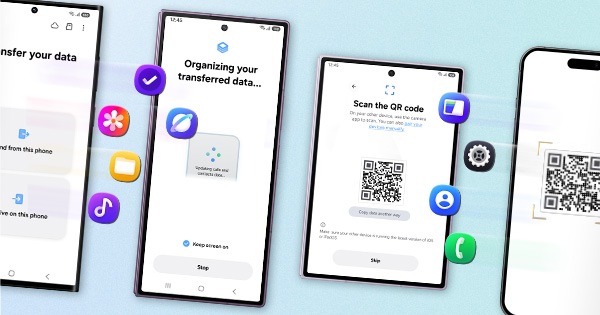
Note:- Kindly create a data backup of your device via smart switch mobile application or http://www.samsung.com/in/support/smartswitch pc suite.
Remember the google password before resetting the device because it is required during the initial setup.
Factory data reset: Reset your device to its factory default settings. This will erase all data, including files and downloaded apps.
In case the issue still occurs. Please register your concern in Samsung Members Application (Open Samsung Members Application > Get help > Send Feedback > Error report/Ask questions).
Thank you for writing to us.
Warm Regards,
Samsung Customer Support.