

- Mark as New
- Bookmark
- Subscribe
- Subscribe to RSS Feed
- Permalink
- Report Inappropriate Content
05-16-2023 01:25 PM in
Galaxy F
- Mark as New
- Subscribe
- Subscribe to RSS Feed
- Permalink
- Report Inappropriate Content
05-16-2023 09:35 PM in
Galaxy F
- Mark as New
- Subscribe
- Subscribe to RSS Feed
- Permalink
- Report Inappropriate Content
05-16-2023 10:04 PM in
Galaxy F
- Mark as New
- Subscribe
- Subscribe to RSS Feed
- Permalink
- Report Inappropriate Content
05-16-2023 11:14 PM in
Galaxy F
- Mark as New
- Subscribe
- Subscribe to RSS Feed
- Permalink
- Report Inappropriate Content
05-16-2023 11:15 PM in
Galaxy F
- Mark as New
- Subscribe
- Subscribe to RSS Feed
- Permalink
- Report Inappropriate Content
05-17-2023 03:02 PM in
Galaxy F
- Mark as New
- Subscribe
- Subscribe to RSS Feed
- Permalink
- Report Inappropriate Content
05-17-2023 12:04 PM in
Galaxy F
- Mark as New
- Subscribe
- Subscribe to RSS Feed
- Permalink
- Report Inappropriate Content
05-17-2023 03:02 PM in
Galaxy F
 cs-member11
- Mark as New
- Subscribe
- Subscribe to RSS Feed
- Permalink
05-17-2023 05:38 PM in
Galaxy FDear Samsung Member,
Greetings from Samsung Customer Support!
Thank you for sharing your concern. We acknowledge your query and apologize for the same. And please follow the easy troubleshooting steps which might help to solve the issue.
If your fingerprints fail to unlock the phone, and you are asked to type in the lock screen password, follow the steps to resolve the problem:
Have you check your fingers:
Ensure that your fingers are clean and dry.
Note: 1: If the skin on your fingertips is peeling or cracking, or your fingerprint is difficult to capture, the fingerprint ID on your phone may not work.
2: If your fingerprints fail to unlock the phone while the phone is recharging, remove it from the charger and try again. If you are charging the phone with a charger and data cable from other brands when you use fingerprints to unlock the phone, they may interfere with the fingerprint sensor and cause the recognition to fail.
Clean the fingerprint sensor:
Clean the fingerprint sensor with a soft cloth. Make sure the fingerprint sensor is dry and free from any debris that may cause the sensor to be unable to recognize fingerprints.
Remove fingerprint and set up fingerprint again:
Remove the current fingerprint and set up the fingerprint again. When you touch the sensor to set up your fingerprint, make sure you set the entire fingerprint, including the outer area of your fingertip. Setting the entire fingerprint area enables successful fingerprint recognition with any grip.
Please follow the below steps:
1). Remove the fingerprint and add a new fingerprint.
2) Check for Software Update using the steps:
Settings >> Software update >> Download and install>>Check for software
update >> If Software update available>>Download>>Downloading
updates>>Install now.
Note: Your phone will restart after the update is installed.
3).Please reset all device settings using the steps"
Apps>settings> general management>reset all settings
Factory data reset: Reset your device to its factory default settings. This will erase all data, including files and downloaded apps.
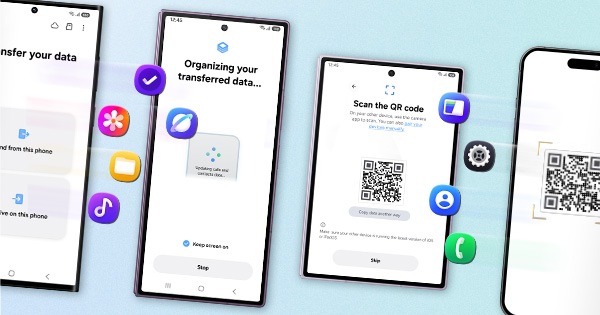
Kindly create a data backup of your device via the smart switch mobile application or http://www.samsung.com/in/support/smartswitch pc suite.
Remember the google password before resetting the device because it is required during the initial setup.
If you do not remember then advise to reset (Forgot password) the google account.
For this; Open Gmail (https://accounts.google.com/servicelogin)>>Select forgot password>>Select "try another way" like mobile number, security question, etc.>>Select Next>>Enter a new password>>Tap on Next.
In case the issue still occurs. Please register your concern in Samsung Members Application (Open Samsung Members Application > Support> Tap on error report > Type your query > Send).
Thank you for writing to Samsung.
Warm Regards,
Samsung Customer Support
- Mark as New
- Subscribe
- Subscribe to RSS Feed
- Permalink
- Report Inappropriate Content
05-17-2023 09:28 PM in
Galaxy F
